From a wallet to a card
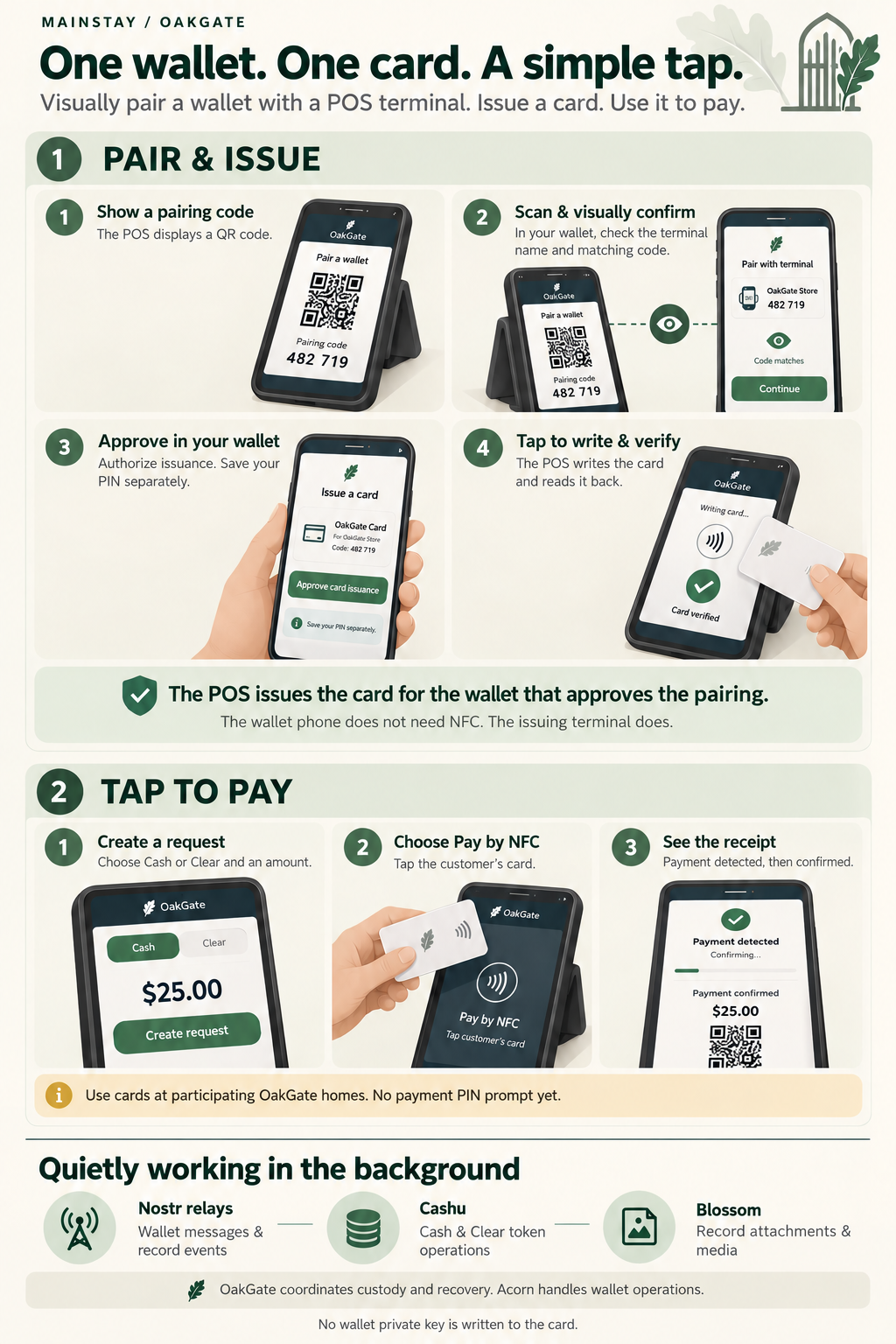
Open the full-size infographic
Illustrated screens explain the flow; they are not exact application screenshots.
Maya visits a community café that uses OakGate. She already has a wallet with funds, but would like a card she can tap at the counter. The café's POS and her wallet belong to the same OakGate home.
Pairing and issuance take place within one home. Afterwards, the card can be used at participating remote homes through the connected network.
A pairing she can see
The staff member selects Pair NFC Card. A QR code appears on the terminal, along with a short pairing code. Maya scans it with her phone and opens the pairing request in her signed-in wallet.
She checks the terminal's name and compares the code on her phone with the one in front of her. They match. She selects Approve card pairing and saves her new PIN separately when prompted.
The terminal now has approval to prepare a card for Maya's wallet. The staff member presents a blank NFC card, writes it, and reads it back to verify the result. Maya's phone never needs to write the card.
The terminal supplies the NFC hardware. The wallet holder approves the pairing. The terminal operator does not need Maya's sign-in credentials or wallet private key.
A payment with a tap
Later, Maya buys a drink. The staff member chooses Cash or the café's supported Clear credits and enters the amount. Maya checks the amount displayed on the terminal. The staff member selects Pay by NFC, and Maya taps her card.
The terminal shows the payment progressing. Payment detected tells the café that a payment has been observed; it is distinct from final confirmation. The wallet's transaction history provides a place to check the outcome later.
For this first version, payments do not prompt for a PIN. Maya keeps her card safe and can revoke it from her wallet if it is lost. Card sign-in is a separate, optional enrollment flow.
A record with the same card
The café also hosts a community event. Maya has prepared a whoami record in
her wallet with a photo and the information she wants to show at the desk.
Her myinfo record contains additional information she chooses to present separately.
The staff member opens Check a Record, selects whoami, and chooses Create Request. Maya can scan the QR with her wallet, check the terminal name and requested label, then approve. With her card, the staff member instead chooses Request by NFC and Maya taps it on the terminal.
Once the presentation is ready, the staff member selects Show Record. The terminal displays the record text and its supported image attachment, so Maya's photo can appear alongside her information. OpenETR verification information is available for the attachment. Staff still need to assess what the record says; a presentation alone does not prove identity or entitlement.
If additional information is needed, staff start a new request for myinfo. Maya's previous record disappears from the display. Close Request also removes the display, and requests expire after two minutes. The record stays in Maya's Acorn; it is not imported into the café's wallet.
NFC presentation currently accepts a card from the local or an accepted remote home without a PIN. Maya therefore puts only information she is comfortable presenting in these two records and revokes a lost card promptly. QR presentation asks for approval in her wallet.
Quietly in the background
Maya sees her wallet, a pairing code, a card and a payment indication. The underlying services stay out of her everyday interaction:
- Nostr relays carry wallet messages and record events.
- Cashu supports the Cash and Clear token operations handled through Acorn.
- Blossom supports record attachments and media elsewhere in the experience; it is not a required step in every card issuance or payment.
OakGate coordinates custody and recovery. Acorn handles wallet operations, including operations involving the user's private key. The card holds an encrypted random credential—not the wallet private key. A Cash invoice remains a Lightning payment; a Clear request follows the Clear payment flow.
Available today
This flow requires an NFC-capable terminal and a supported secure browser, typically Chrome on Android. The wallet holder's phone only needs to scan and approve the pairing, so an iPhone can participate without writing the NFC card itself.
Current POS card payments accept cards from the same OakGate home. The paying wallet must differ from the receiving wallet. Possession of a valid card currently authorizes payment without a PIN: do not treat it as a tamper-resistant smartcard. If a payment cannot be confirmed, check its status before trying another payment.
Card provisioning and payment details · Card trust and security · POS record presentation · Explore User Experiences
Terminology: Everyday Funds means Cash; Community Credits means Clear balances. Some illustrations and payment controls retain Cash/Clear. See user-facing language.
Across participating homes
The wallet and terminal can belong to independent OakGate homes. The terminal stays with its own home, which verifies and contacts the card issuer for the requested operation. The holder does not need a second account at the merchant's home. Acceptance policies, compatible credit assets and online connectivity still apply; card issuance remains home-local; record QR approval also works between participating homes. See Independent homes, one connected experience.